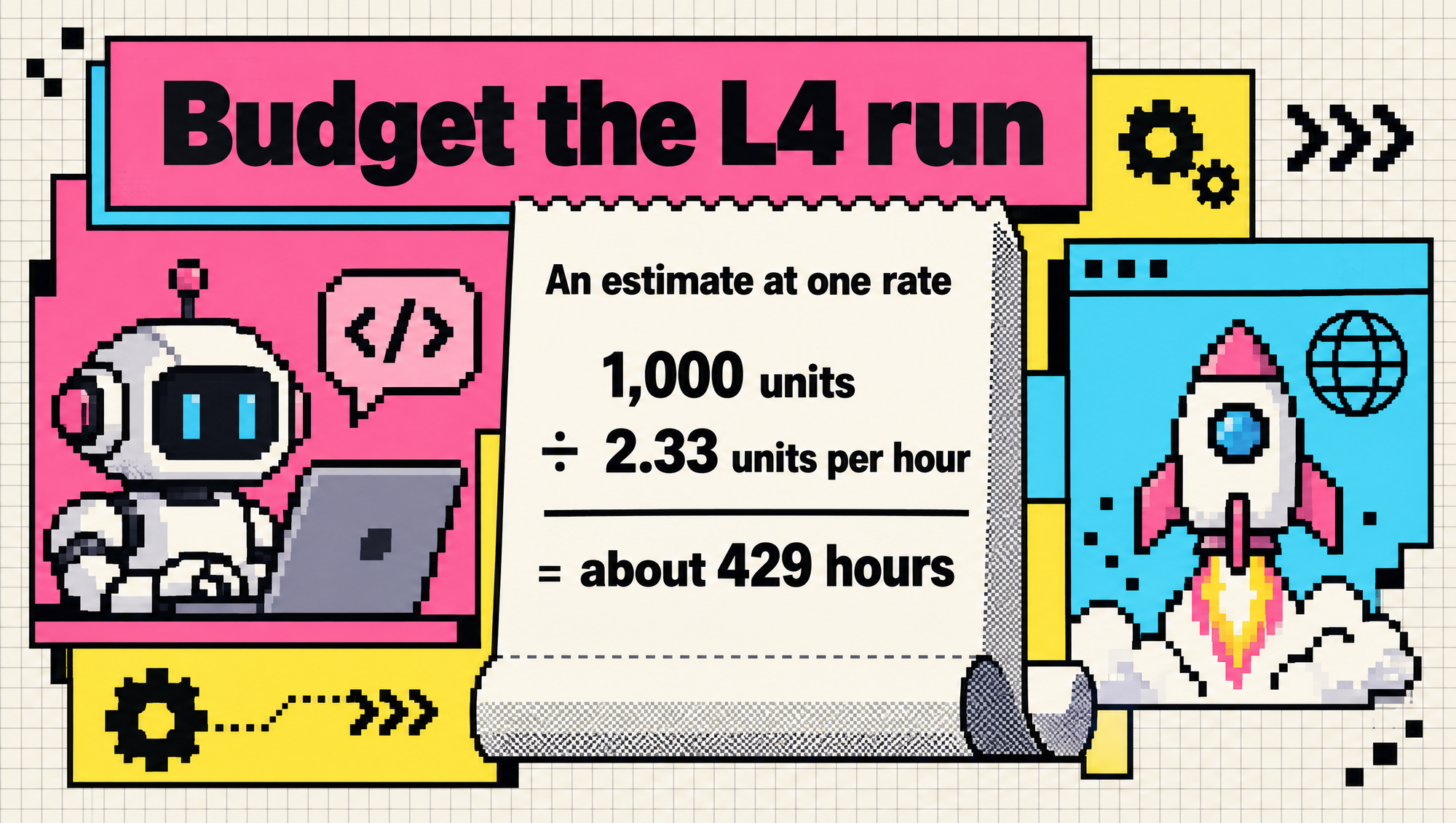
Colab can stretch 1,000 compute units to about 429 L4 hours if the runtime costs 2.33 units an hour. On November 30, 2026, Google’s Taiwan plan comparison listed 1,000 monthly units for Google AI Ultra 5x. The hourly rate is an assumption for the estimate. With a paid account, a positive balance, and a Linux or macOS terminal, you can check your own rate and test ComfyUI in a single runtime.
1. Read the Colab balance before you request an L4
Open Settings → Subscription in Colab on the Google account that pays for your AI plan. Google applies eligible paid benefits to that account automatically. Monthly units recur according to the start of the account’s entitlement. Free promotional trials are excluded. Colab FAQ
| Google AI plan | Monthly Colab units in Taiwan | L4 budget at 2.33 units/hour |
|---|---|---|
| Plus | 50 | About 21 hours |
| Pro | 200 | About 86 hours |
| Ultra 5x | 1,000 | About 429 hours |
| Ultra 20x | 2,000 | About 858 hours on paper |
The plan column comes from Google One’s Taiwan comparison. The hours are arithmetic estimates, calculated by dividing the units by 2.33 and rounding to the nearest hour. The 858-hour figure exceeds the time in a 31-day month for one runtime. Colab can vary GPU availability, idle timeouts, and maximum VM lifetime, so use the balance and rate shown on your account to budget each run.
2. Request a named runtime and confirm the GPU
Install Google’s Colab CLI on your computer and record the balance before creating a VM. The v0.8.0 CLI documents Linux and macOS support. First use may prompt you to sign in with Google. Colab CLI v0.8.0
uv tool install google-colab-cli
colab usage
When the account and balance match what you expected, request an L4 runtime named comfy-l4. The allocation uses quota. Check that the runtime is active and that nvidia-smi reports an L4. NVIDIA specifies 24 GB of GPU memory for the L4. Start with a checkpoint and workflow that fit on that card. NVIDIA L4 specifications
colab new -s comfy-l4 --gpu L4
colab status -s comfy-l4
colab ssh -s comfy-l4 -- nvidia-smi
If you cannot get an L4, check whether comfy-l4 was created and release it if present. Check the hourly rate again before budgeting for another accelerator.
3. Start ComfyUI on the VM’s loopback interface
Open colab ssh -s comfy-l4 after confirming that the named session exists. Run the next block inside that remote shell. The virtual environment inherits the VM’s packages, so it assumes a compatible CUDA-enabled PyTorch build. Check the Python command’s result before starting the server. If CUDA reports False, follow the GPU dependency steps for your environment in the ComfyUI install documentation.
cd /content
git clone https://github.com/Comfy-Org/ComfyUI.git
cd ComfyUI
python -m venv --system-site-packages .venv
source .venv/bin/activate
python -m pip install -r requirements.txt
python -c 'import torch; print(torch.cuda.is_available(), torch.version.cuda)'
python main.py --listen 127.0.0.1 --port 8188
Leave ComfyUI running and open a second terminal on your computer. The following command asks the remote VM to reach its own loopback address. A successful JSON response confirms that the server answers. To test generation, run one small workflow with a compatible checkpoint you have permission to use and check that it writes an image.
colab ssh -s comfy-l4 -- curl -fsS http://127.0.0.1:8188/system_stats
For browser access, use an authenticated OpenSSH local forward on runtimes that support Colab’s SSH endpoint. Keep the local and remote bind addresses on loopback. Set up the alias after confirming the VM exists, since a named proxy can create a missing runtime. Colab SSH documentation
4. Save the output, stop the VM, and record the spend
Download any image you want to keep before stopping the runtime. Replace example.png with the filename ComfyUI actually wrote. If you only ran the health check, start with the stop command. Confirm the VM is gone from the session list and compare the ending unit balance with your starting balance.
colab download -s comfy-l4 /content/ComfyUI/output/example.png ./example.png
colab stop -s comfy-l4
colab sessions
colab usage
Record elapsed runtime and setup time. If this was the only active VM during the test, divide the units used by elapsed hours to get an observed hourly rate. For a batch, divide the units used by the number of successful outputs to budget the next job. Keep the workflow file and checkpoint details somewhere persistent, since the VM can disappear after an idle timeout or when it reaches its lifetime limit.

If you use Antigravity to prepare a repeat run, ask it to draft commands for the named runtime and show you which ones allocate compute, download files, or stop the VM. Review those commands before execution. If you save the procedure as a skill, inspect SKILL.md and any bundled scripts together. Antigravity skill documentation
FAQ
Can I run ComfyUI’s browser interface on free Colab?
Colab restricts workloads that interact primarily through a web UI on free managed runtimes without a positive compute-unit balance. Google says a paid plan and a positive balance remove that extra restriction. Colab’s usual runtime limits still apply.
How long can a single Colab runtime stay open?
Colab lists a general notebook maximum of up to 12 hours, subject to availability and usage. Colab Pro+ can run code continuously for up to 24 hours with sufficient units. Check your account’s entitlement before budgeting an overnight job.
Sources
About the author
Crafting seamless user experiences with a passion for headless CMS, Vercel deployments, and Cloudflare optimization. I'm a Full Stack Developer with expertise in building modern web applications that are blazing fast, secure, and scalable. Let's connect and discuss how I can help you elevate your next project!
Comments
Join the discussionNo comments yet. Be the first to comment.