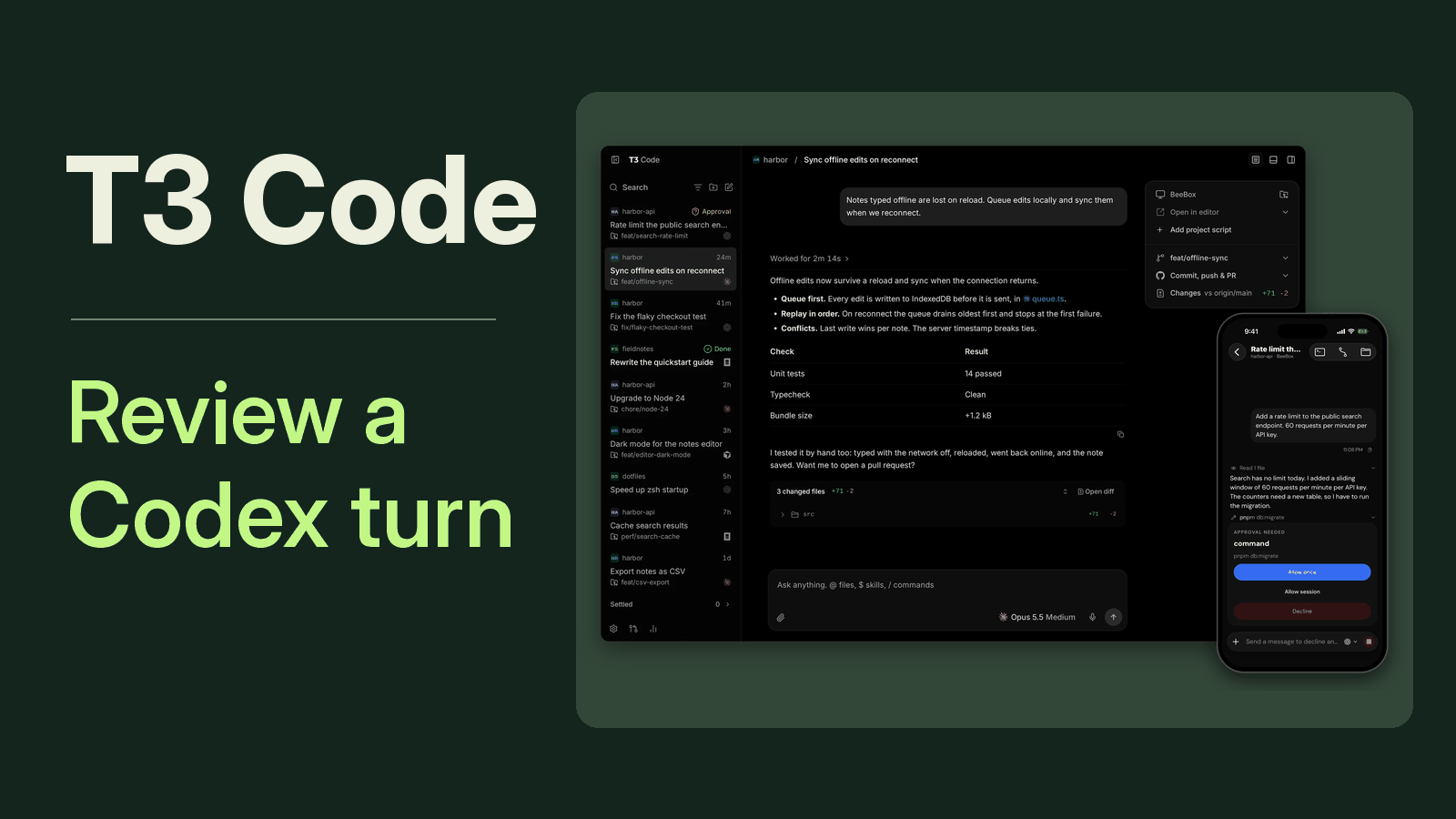
T3 Code runs coding agents on your computer and shows the files each agent changed in a turn. To try it, connect Codex, open a local Git project and give it one failing test. You’ll use the test result and the actual diff to decide whether to keep its patch. This walkthrough uses T3 Code v0.1.11, released November 20, 2026. You’ll need Git, Node.js and access to one supported provider. Release notes
1. Start T3 Code on the computer that holds your files
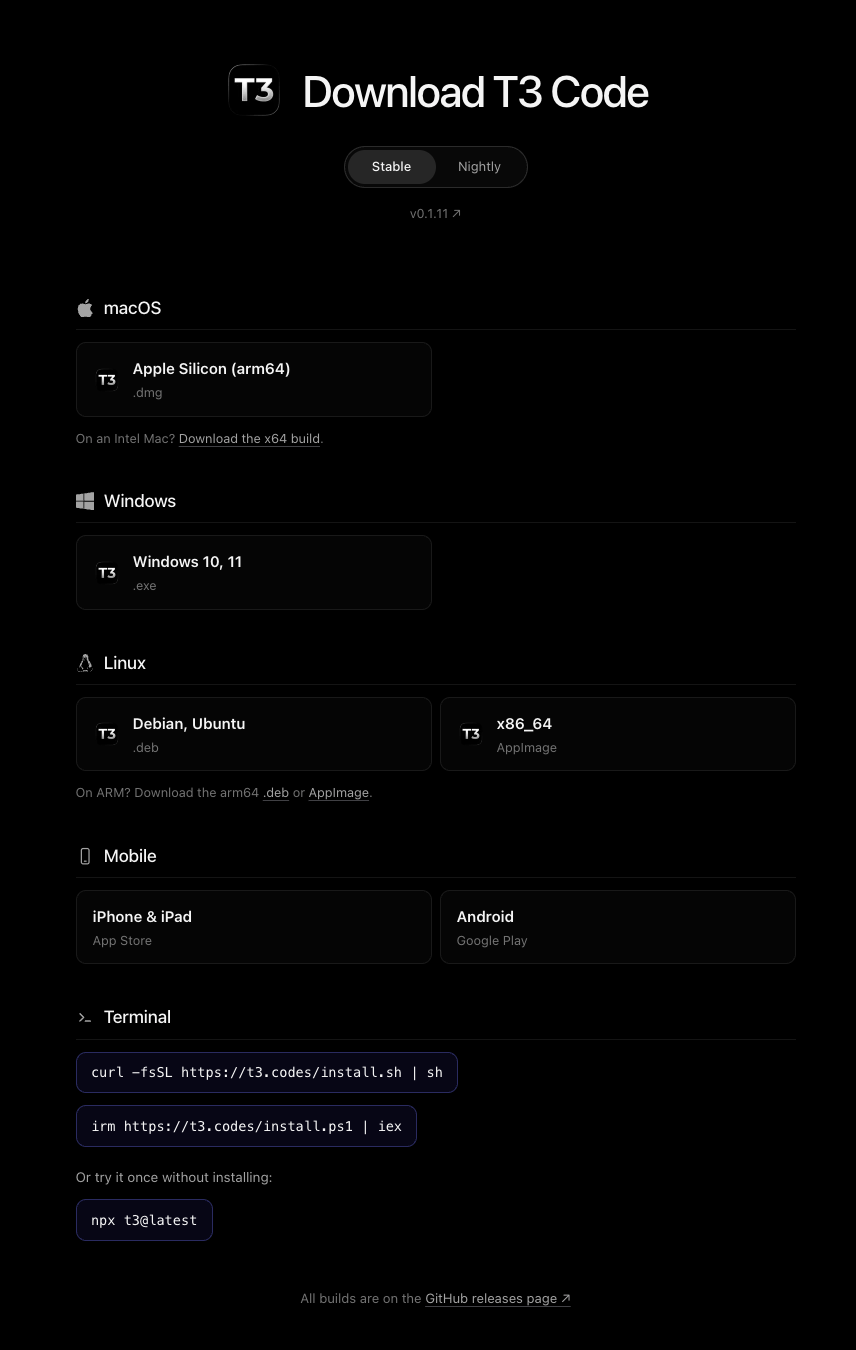
Download the stable T3 Code desktop build for your operating system and processor. To try its web interface, run npx t3@latest in a terminal. Its current npm package requires Node.js 20.11 or newer. If the launcher offers to install the permanent t3 command, declining still lets you try the app. Desktop downloads · Installation guide
npx t3@latest
The desktop app or local web interface should open. A new installation shows which agents it found. You can finish setup before configuring one, but a coding thread needs access to a provider. Opening the app is a separate check from asking a model to do work.
2. Give one provider access and choose its permissions
In Settings → Providers, select Codex. Choose Continue with ChatGPT to connect a supported account, or Use existing CLI if you have a working Codex CLI login on this computer. If you prefer Claude Code, its provider uses Claude Code’s own login and configuration. Use the account on the machine where the agent will run. Codex provider · Claude provider
Look for the agent in the model picker before submitting a task. For this exercise choose Supervised under Permissions in the picker. It can request approval for commands and file edits. A fresh installation initially defaults to Full access for new threads, and a project or administrator can override that setting. Permission modes
3. Give the agent a test it can fail
Create a fresh directory in a terminal. Using a separate Git repository lets you see whether the agent touched anything outside the requested file.
mkdir label-demo
cd label-demo
git init
Save the following as label.mjs in that folder.
export function formatLabel(value) {
  return value;
}
Next to it, create label.test.mjs. The expected string keeps the space between the words.
import assert from 'node:assert/strict';
import { test } from 'node:test';
import { formatLabel } from './label.mjs';

test('removes outer spaces and keeps the inner space', () => {
  assert.equal(formatLabel('  first task  '), 'first task');
});
Record this starting point, then run the test. The temporary Git name and email apply only to this commit.
git add label.mjs label.test.mjs
git -c user.name=Demo -c user.email=demo@example.invalid commit -m "Add failing label test"
node --test
Expect one failed test. The function currently returns the original string with the padding intact. If Node reports zero tests, confirm that the test file is named label.test.mjs and that your terminal is in label-demo.
4. Run the first thread and inspect the resulting diff
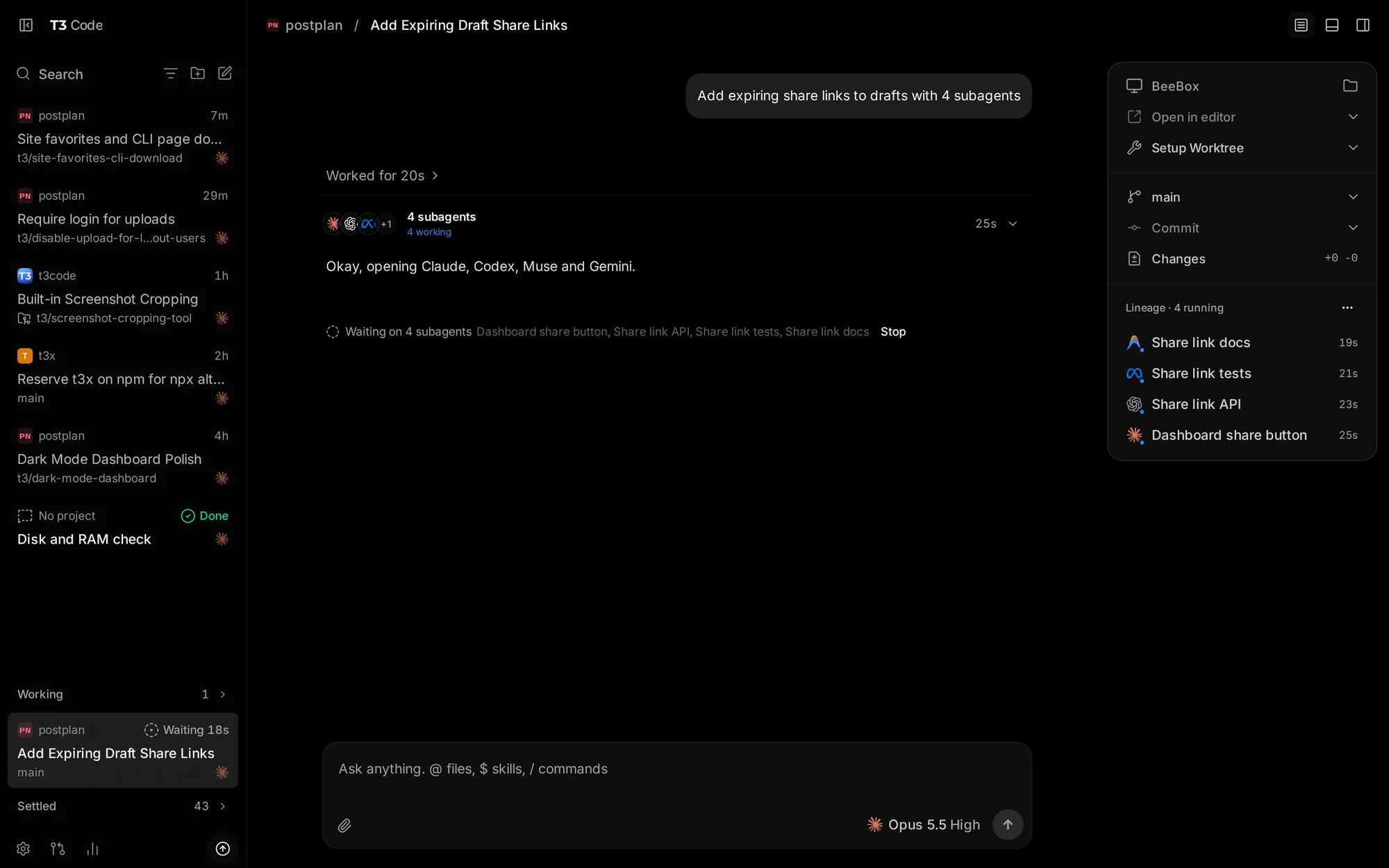
Open label-demo as a project. On desktop, drag the folder onto the sidebar. In the web app, use Add project. Start a new thread in that project, keep it in the current working directory, and choose Codex. The following prompt gives the agent a file boundary and a separate test of success. Opening projects · Thread and worktree controls
Change only label.mjs so formatLabel removes outer spaces and preserves inner spaces. Run node --test and show the diff. Do not commit.
Read any approval request and check that its file or command fits the task. When the turn ends, open its diff. You should see a change to label.mjs that removes the outer spaces, with the assertion in label.test.mjs untouched. T3 Code’s turn view identifies the work of that turn. The branch comparison answers the wider question of everything that changed against the base branch. Reviewing changes
Back in the same Git directory, run these checks yourself.
node --test
git status --short
git diff -- label.mjs
In our v0.1.11 run, Codex replaced return value; with return value.trim();. The independent test rerun went from one failure to one pass. The thread showed 1 changed file. Open diff opened Diff scope: Latest turn with only label.mjs, and the agent made no commit. A passing result alongside a modified test deserves another look. If you ran the thread in New worktree, run these commands in that worktree to inspect its files.
5. Pick up the same task on a phone
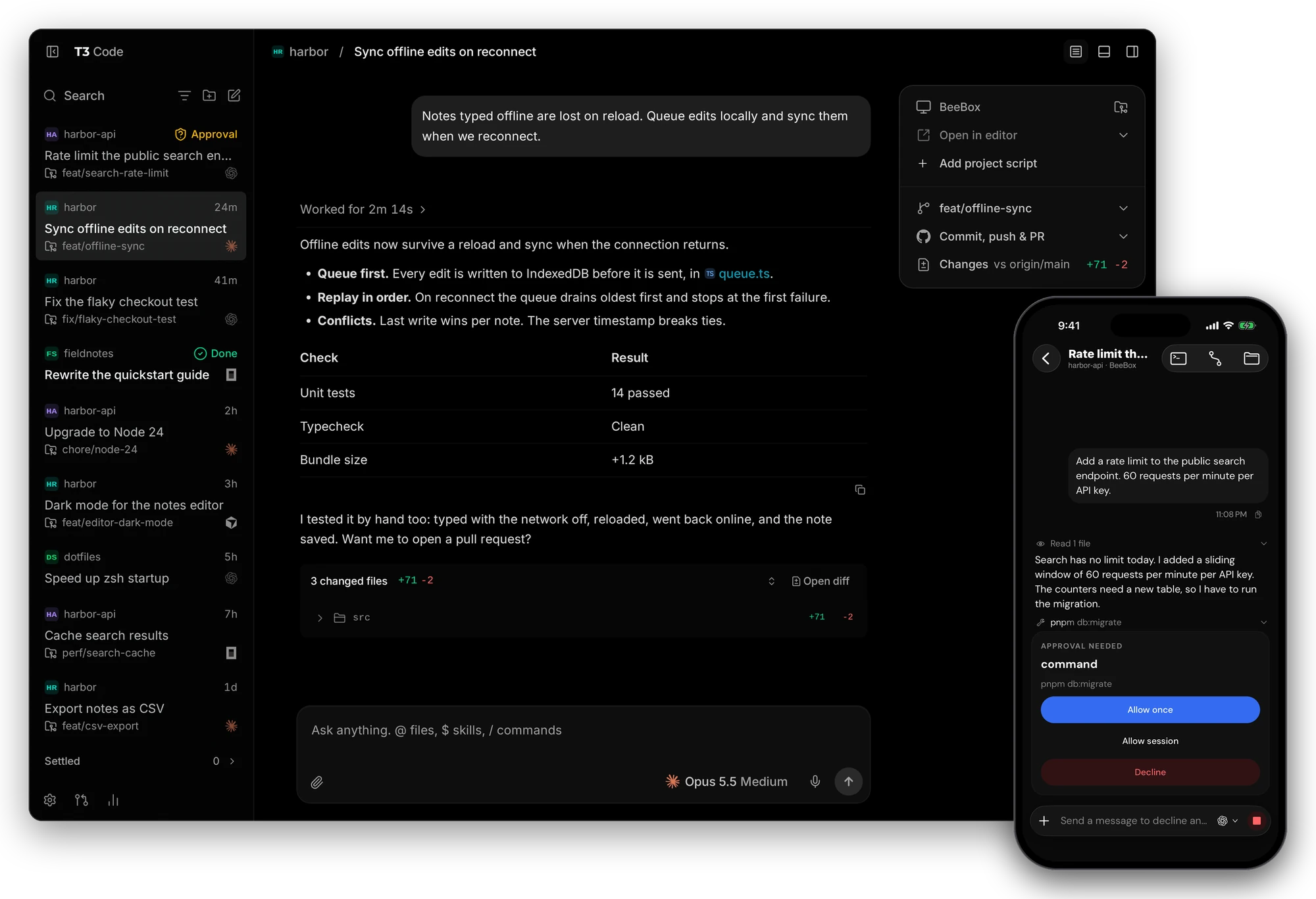
At 8:42 in the T3 Code mobile review demonstration, a code-review request sent from a phone appears on the desktop. Both clients show the task running. The second video distinguishes pairing a client with a host from linking environments at 11:08. The phone acts as a client. The host keeps the files and runs the agent. Mobile review demonstration, 8:42 · Pair and Link demonstration, 11:08
For T3 Connect, open Settings → Sharing & access on the host, sign in and enable T3 Connect for that environment. Sign in to the same account on the phone, choose the environment and reopen the thread. The host must stay running and reachable. Closing the desktop app’s last window stops its local server. If your phone connects to a separately running T3 server, keep that server running and reachable. Remote access
Questions about T3 Code setup
Can I try T3 Code without a second model subscription?
T3 Code can use an existing Codex CLI login, a supported ChatGPT plan or an authenticated Claude Code setup. One working provider is enough for the example. Each provider’s plan or API terms determine the usage available to that account.
How do I connect T3 Code to a phone without moving the repository?
T3 Connect exposes the selected host environment to your signed-in devices. Open that environment on the phone and leave the repository on the host. A direct pairing URL is another option when the client can reach the server. Remote access options
Can two agents try different fixes without editing the same files?
On the web or desktop app, Shift-click models in the picker of a new thread to select more than one. Choose a base branch in a Git project and send the prompt. T3 Code starts a separate thread and worktree for each selection, so you can review their diffs independently. An ordinary new thread can also use the current worktree. Parallel threads
Sources
- T3 Code desktop downloads
- T3 Code installation and project setup
- Connect a Codex provider
- Configure Claude Code
- Review turn changes and branch changes
- Permission modes
- Working with threads and Git worktrees
- Remote access and T3 Connect
- T3 Code v0.1.11 release
- Published t3 package and Node requirement
- Mobile review demonstration, prompt at 8:42
- Chang’s Tech Workshop, Pair and Link at 11:08
About the author
Crafting seamless user experiences with a passion for headless CMS, Vercel deployments, and Cloudflare optimization. I'm a Full Stack Developer with expertise in building modern web applications that are blazing fast, secure, and scalable. Let's connect and discuss how I can help you elevate your next project!
Comments
Join the discussionNo comments yet. Be the first to comment.